Context
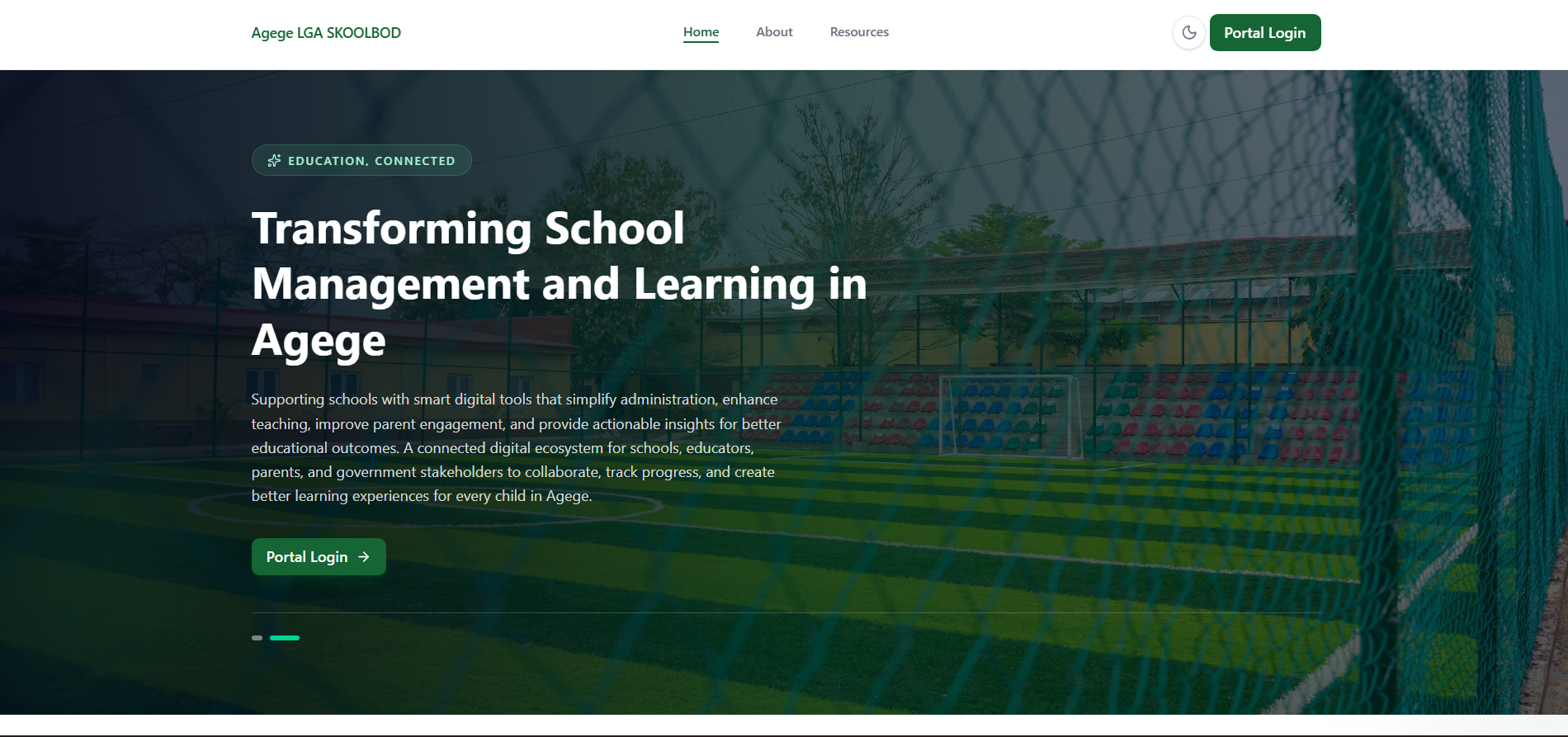
Nexa brings school administration, academic records, and oversight together for a local government area. LGA administrators, zonal officers, school administrators, teachers, and parents each get a workspace shaped around what they are responsible for, over the same underlying records.
My role
I own the design system and overall UI direction, and the frontend architecture, including how the client integrates with the API. I also do a substantial share of the hands-on engineering. This case study covers the client side of the platform.
Across Skoolbod I also take part in early stakeholder discovery on some projects, implementation planning, code reviews, engineering decisions, and deciding which features to build first.
One permission model for five kinds of user
The hardest part of Nexa isn’t any single screen. It’s that an LGA administrator, a zonal officer, a school administrator, a teacher, and a parent can all look at the same records with very different rights.
Permissions come from one map of roles to capabilities, and routes and screens ask that map what the current user may do. Adding or adjusting a role is a change in one place, and the same rule guards a route, a menu item, and an action button, so they can’t disagree. Zonal officers, for example, only see the schools in their own zone.
Analytics people can actually use
The analytics page brings together overview, subject, school, equity, at-risk, and trend views. Access depends on role, and the school comparison is only shown to LGA-level users.
- Filters for LGA, session, term, school, gender, and class level, so a question like “how did this class level do this term” is a few selections, not an export.
- Search inside charts, with a sensible default number of items, so long lists of schools or subjects stay readable.
- Every chart can switch to a table, which gives exact values and an equivalent that doesn’t depend on reading colours or shapes.
- Responsive layouts, so the same analysis works on a laptop or a phone.
Accessibility
I implemented accessibility as part of the components rather than as a final pass, and tested it by hand:
- Keyboard access through navigation, menus, dialogs, tabs, and form controls, including closing overlays with Escape.
- Screen-reader support through accessible names, roles, and states on custom controls such as comboboxes and tabs.
- A visible focus indicator on interactive elements.
- Contrast checks for text and controls.
- Information that doesn’t depend on colour alone, such as the table view for every chart and text labels on status.
Feedback and ongoing support
Success and error messages go through one shared notification system, so people get the same kind of feedback for the same kind of outcome anywhere in the product, and raw server errors are turned into messages they can act on.
Since the deployment went live, I monitor user reports and performance, investigate issues, and release fixes and updates as ongoing support.
What I learned
- In multi-tenant software, the permission model is part of the design. If it lives in one place, the interface can stay simple.
- A chart without a table view is unfinished. The table is what makes the numbers checkable and accessible.